在控制面板 — 程序中,打开启用或关闭 Windows 功能窗口,勾选 Internet Information Services — 万维网服务 — 应用程序开发功能 — CGI。
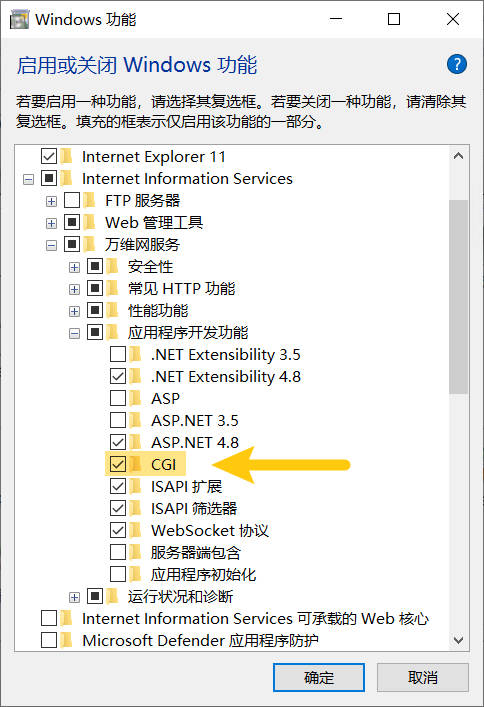
勾选 CGI
在 IIS 转入目标网站的功能视图,在默认文档中添加 index.php。
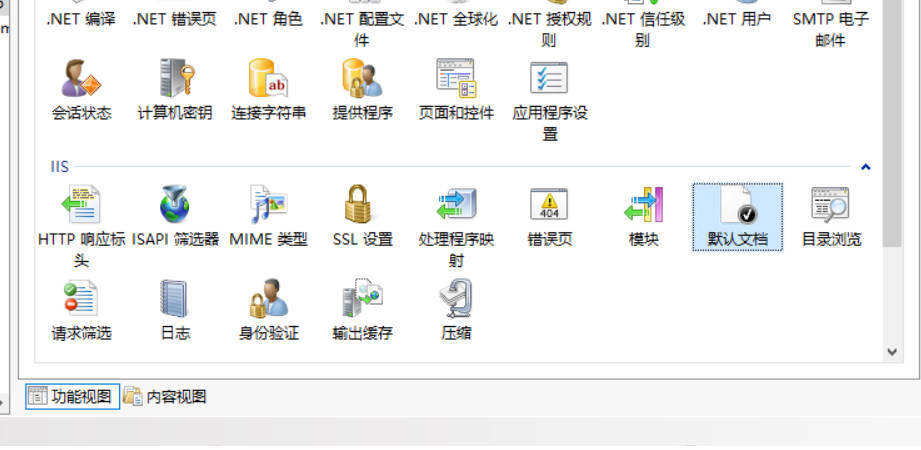
功能视图
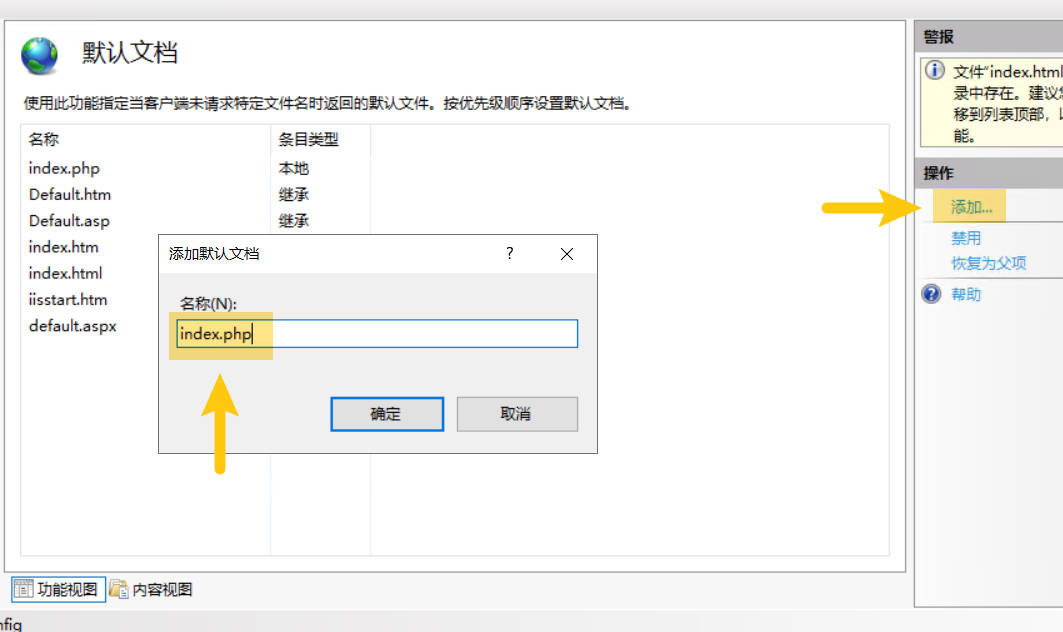
添加 index.php
在下述链接下载所需版本的 PHP。注意下载带 nts 字样的版本,例如 php-8.4.14-nts-Win32-vs17-x64.zip。
https://windows.php.net/downloads/releases/
下载好后解压到自选目录下。视情况将目录中的 php.ini-production(生产环境用)或 php.ini-development(测试环境用)复制一份,重命名为 php.ini。此文件即为配置文件。
将下述内容保存为 bat 文件,注意把 phppath 改为你解压的目录。以管理员权限运行此脚本。
@echo off

REM 注意把下方的 phppath 改为你解压的目录
set phppath=c:\php

REM Clear current PHP handlers
%windir%\system32\inetsrv\appcmd clear config /section:system.webServer/fastCGI
REM The following command will generate an error message if PHP is not installed. This can be ignored.
%windir%\system32\inetsrv\appcmd set config /section:system.webServer/handlers /-[name='PHP_via_FastCGI']

REM Set up the PHP handler
%windir%\system32\inetsrv\appcmd set config /section:system.webServer/fastCGI /+[fullPath='%phppath%\php-cgi.exe']
%windir%\system32\inetsrv\appcmd set config /section:system.webServer/handlers /+[name='PHP_via_FastCGI',path='*.php',verb='*',modules='FastCgiModule',scriptProcessor='%phppath%\php-cgi.exe',resourceType='Unspecified']
%windir%\system32\inetsrv\appcmd set config /section:system.webServer/handlers /accessPolicy:Read,Script

REM Configure FastCGI Variables
%windir%\system32\inetsrv\appcmd set config -section:system.webServer/fastCgi /[fullPath='%phppath%\php-cgi.exe'].instanceMaxRequests:10000
%windir%\system32\inetsrv\appcmd.exe set config -section:system.webServer/fastCgi /+"[fullPath='%phppath%\php-cgi.exe'].environmentVariables.[name='PHP_FCGI_MAX_REQUESTS',value='10000']"
%windir%\system32\inetsrv\appcmd.exe set config -section:system.webServer/fastCgi /+"[fullPath='%phppath%\php-cgi.exe'].environmentVariables.[name='PHPRC',value='%phppath%\php.ini']"
至此就部署好 PHP 环境了。
值得注意的是,如果修改 php.ini,记得重启 IIS 服务器,而不是只重启网站。
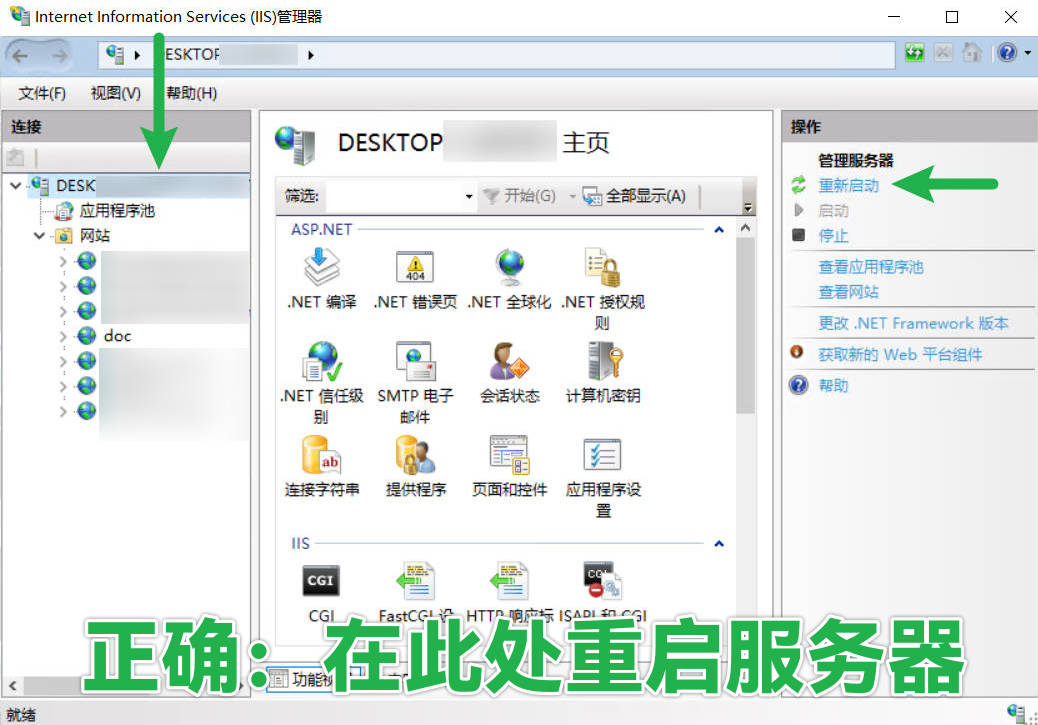
正确示范
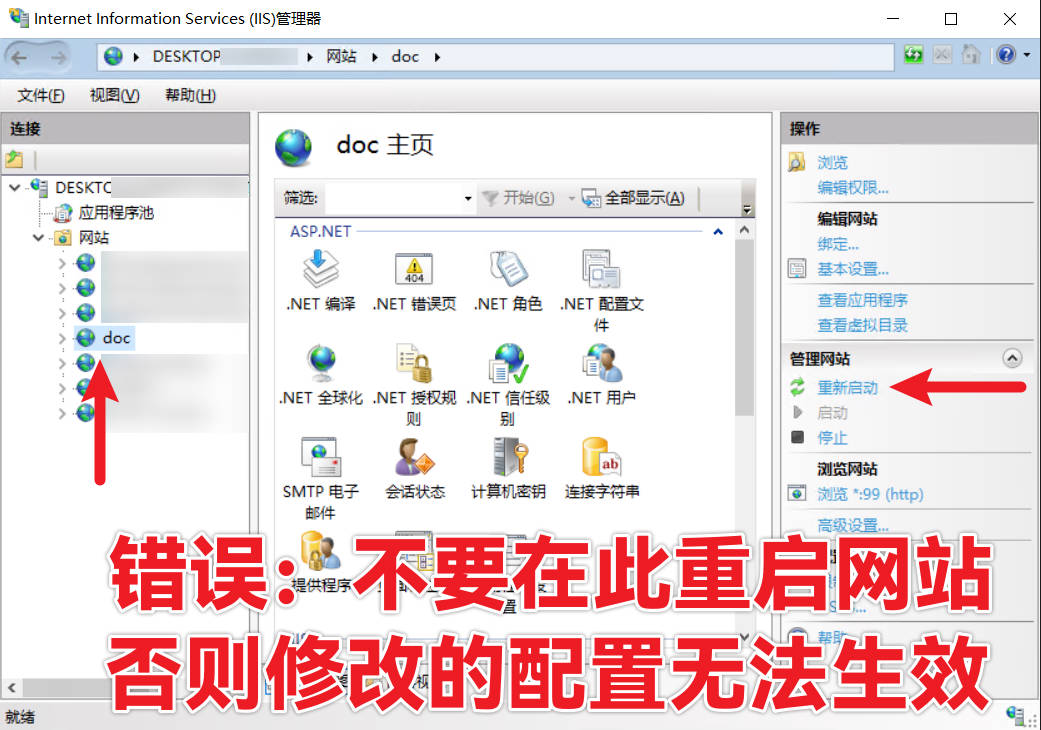
错误示范